
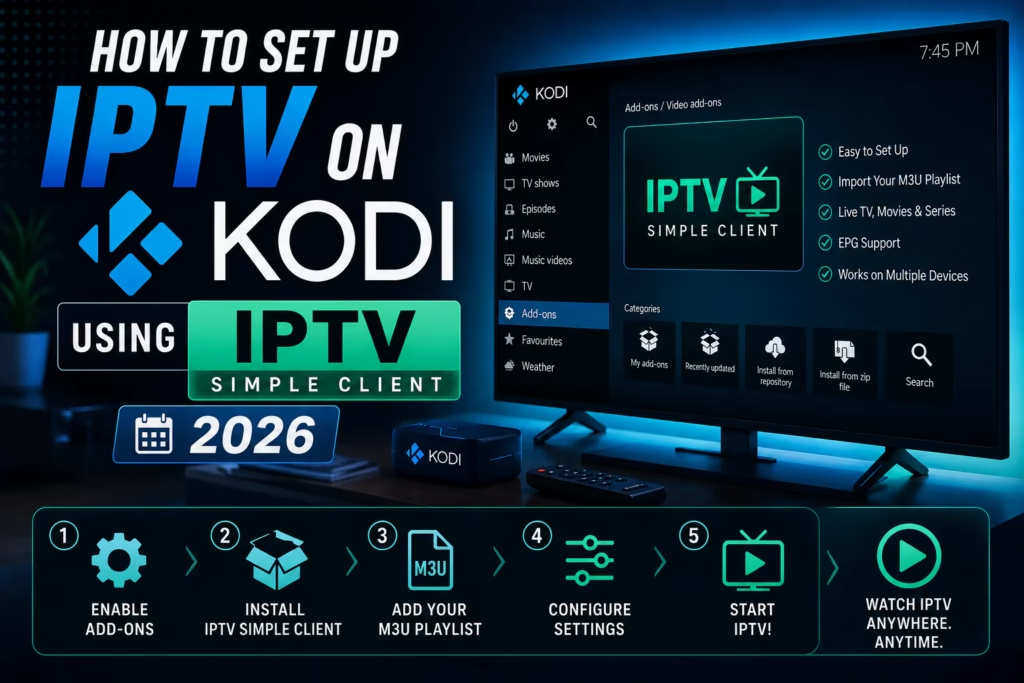
Kodi’s IPTV Simple Client is an official add-on available in Kodi’s built-in repository that lets you load your IPTV subscription’s M3U playlist and watch live channels directly within Kodi. This guide covers how to install and configure it on any device running Kodi – Firestick, Android TV box, Windows, or Mac.
Before you start: You need Kodi installed on your device and an active IPTV subscription with an M3U URL. The IPTV Simple Client is a player – it does not provide any content. If you do not have an IPTV subscription yet, see our free trials page.
Step 1: Install IPTV Simple Client
- Open Kodi and go to Add-ons from the main menu
- Click the open box icon in the top left (Install from repository)
- Select Kodi Add-on repository
- Navigate to PVR clients
- Find and select PVR IPTV Simple Client
- Click Install and wait for the confirmation notification
Step 2: Configure the Add-on
- After installation, click Configure on the confirmation popup, or navigate back to PVR clients and click the add-on to configure it
- In the General tab, change M3U Playlist Location from Local Path to Remote Path (Internet Address)
- In the M3U Playlist URL field, paste your M3U URL from your provider welcome email
- If your provider supplied an EPG URL for the programme guide, click the EPG Settings tab and paste the EPG URL into the XMLTV URL field
- Click OK to save
Tip for long M3U URLs: If your M3U URL is very long and difficult to type on a remote control, use bit.ly on a computer to create a shortened version and enter that instead. Both the original and shortened URL load the same playlist.
Step 3: Enable the PVR Add-on
- After saving the configuration, Kodi will prompt you to enable the PVR add-on – click Yes
- Kodi will restart or refresh to load the channel list
- After the restart, go to TV from the Kodi main menu
- Your channels will appear organised by the groups supplied by your IPTV provider
Navigating Channels in Kodi
Once set up, live channels are accessible via the TV section of the Kodi main menu. You can browse by channel group, access the EPG guide to see what is currently on, and add individual channels to favourites for quick access. The EPG guide in Kodi’s PVR interface shows current and upcoming programmes where your provider supplies guide data.
Troubleshooting
TV section not appearing in Kodi main menu: Go to Settings > PVR and Live TV and make sure the PVR add-on is enabled. A Kodi restart is sometimes required after enabling a PVR client for the TV menu to appear.
Channels loading but not playing: Check that your M3U URL is still active by pasting it into a browser on a phone or computer. If it does not load in a browser, the URL may have expired or changed. Contact your provider for a refreshed URL.
EPG not showing programme information: The EPG URL must be entered in the EPG Settings tab separately from the M3U URL. Allow 5-10 minutes for the EPG to fully populate after first setup.
Buffering during playback: Try switching the video player in Kodi settings. Go to Settings > Player > Videos and change the player from the default to InputStream Adaptive if available. Also try increasing the video cache size in Kodi’s advancedsettings.xml file.
See our full buffering guide for a complete diagnosis of IPTV buffering issues.
Last updated May 2026. Steps accurate for Kodi 21.x. Interface may vary slightly on older Kodi versions.