
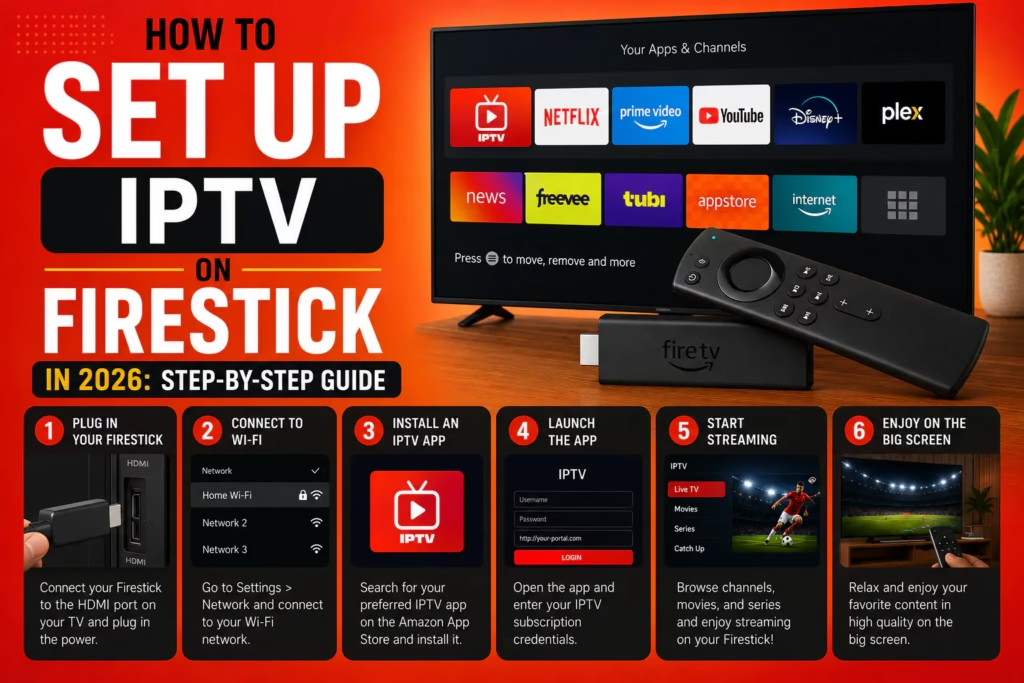
Setting up IPTV on a Firestick takes around 10 minutes from start to finish. This guide covers the complete process – enabling sideloading, installing a player app, and entering your subscription credentials – for both TiviMate and IPTV Smarters Pro. Follow whichever method matches your preferred app.
Table of Contents
- What You Need Before You Start
- Step 1: Enable Apps from Unknown Sources
- Step 2: Install the Downloader App
- Step 3: Install Your IPTV Player App
- Step 4: Enter Your IPTV Credentials
- Step 5: Test Before Your Trial Expires
- Should You Use a VPN?
- Troubleshooting
- FAQ
Don’t have an IPTV subscription yet? You need active credentials (username, password, and server URL, or an M3U link) from a provider before this guide applies. See our free trials page for providers offering a no-card trial, or take the recommendation quiz if you are not sure which provider to choose.
What You Need Before You Start
- An Amazon Firestick or Fire TV device — any model works. The Firestick 4K Max is recommended for 4K content
- A broadband connection — minimum 15 Mbps for HD, 50 Mbps recommended for 4K
- An active IPTV subscription — you will need either an M3U URL or Xtream Codes login (username, password, server URL), delivered by email when you subscribed
- An IPTV player app — TiviMate (recommended) or IPTV Smarters Pro (free). Both are covered in this guide
Step 1: Enable Apps from Unknown Sources
Most IPTV player apps are not available directly in the Amazon App Store and need to be sideloaded. Before you can do this, you need to enable sideloading in Firestick settings.
- From the Firestick home screen, go to Settings (the gear icon in the top right)
- Select My Fire TV
- Select Developer Options
- Turn on Apps from Unknown Sources
Don’t see Developer Options? Go to Settings > My Fire TV > About, then click your device name 7 times. This unlocks Developer Options and it will appear in the My Fire TV menu.
Step 2: Install the Downloader App
Downloader is a free app available directly in the Amazon App Store. It allows you to download and install APK files from URLs – this is how you install IPTV player apps on Firestick.
- From the Firestick home screen, click the Search icon (magnifying glass)
- Type Downloader and select it from the results
- Click Download or Get to install
- Once installed, open Downloader and allow permissions when prompted
- In the Downloader settings, enable Allow JavaScript — this helps with some download pages
Step 3: Install Your IPTV Player App
Choose one of the two methods below depending on which player app you want to use. TiviMate is the better experience for most users. IPTV Smarters Pro is free.
TiviMate has the best EPG guide, most polished interface, and best overall performance of any Firestick IPTV player. A companion app called TiviMate Companion is required to unlock the paid features (~$5/year), but the free version works for basic use.
- Open the Downloader app
- In the URL field, enter the Downloader code 540646 or go to troypoint.com/tivimate
- Click Go and follow the prompts to download and install TiviMate
- After installation click Done (do not open yet)
- If you want the premium features, search for TiviMate Companion in the Amazon App Store, install it, and create an account to purchase the premium subscription
- Open TiviMate and proceed to Step 4
TiviMate is also available via the Amazon App Store directly on some devices — search for it there first before using Downloader.
IPTV Smarters Pro is free and works well for basic IPTV use. It supports M3U and Xtream Codes login. Less polished than TiviMate but costs nothing.
- Open the Downloader app
- Search for IPTV Smarters Pro in the Amazon App Store — it is available there directly on most Firestick models
- If not found in the App Store, enter the URL iptvsmarters.com in Downloader and download from the official site
- Install the APK and open the app
- Proceed to Step 4
Using Nomad IPTV? Nomad IPTV has its own dedicated Firestick app. Open Downloader, enter code 5377968, and install the Nomad IPTV app directly — no need to set up a separate player. Your credentials are pre-configured in the app.
Step 4: Enter Your IPTV Credentials
Your IPTV provider will have emailed you credentials when you signed up. You need either an M3U URL or Xtream Codes login (username, password, and server URL). Check your inbox including spam folders if you cannot find the email.
In TiviMate:
- Open TiviMate and tap Add Playlist
- Select Xtream Codes (recommended if your provider gave you a username and password) or M3U Playlist
- For Xtream Codes: enter your Server URL, Username, and Password exactly as provided
- For M3U: paste the full M3U URL from your provider email
- Tap Next and wait for the channel list to load
- Give the playlist a name (e.g. your provider name) and tap Finish
In IPTV Smarters Pro:
- Open IPTV Smarters Pro and tap Add New User
- Select Login with Xtream Codes API or Load Your Playlist or File/URL
- For Xtream Codes: enter a profile name, your Username, Password, and Server URL
- For M3U: paste your M3U URL in the URL field
- Tap Add User and wait for the content to load
Credentials not working? Double-check there are no extra spaces before or after the username, password, or server URL. Copy-paste from the email rather than typing manually. If the server URL starts with http:// rather than https:// enter it exactly as given.
Step 5: Test Before Your Trial Expires
Once your channels are loaded, do not just check that something plays and assume everything is fine. Run through these tests while your free trial is still active:
- Find and play each of your specific must-have channels — not random ones
- Watch a live stream for at least 20 continuous minutes during an evening (7-10pm) when network load is at its highest
- Check that the EPG guide shows correct programme information for your key channels
- Test VOD — search for a specific film and play it for 10+ minutes
- If you have a multi-device plan, test simultaneous streaming on a second device
See our full trial testing guide for a complete checklist.
Should You Use a VPN?
A VPN is not required to use IPTV on Firestick but is useful in two specific situations. First, if your streams buffer during peak hours despite a fast broadband connection — this is often caused by ISP throttling of streaming traffic, and a VPN can resolve it by encrypting your traffic so the ISP cannot selectively slow it down. Second, if privacy is a priority and you do not want your broadband provider to see your streaming activity.
If you do not experience peak-hour buffering and privacy is not a concern, a VPN adds no value and introduces a small amount of speed overhead. Test without a VPN first. If buffering is an issue, add a VPN and test the same stream again — if it improves, throttling was the cause.
See our VPN guide for IPTV for a full explanation of which VPNs work best on Firestick and how to set one up.
Troubleshooting
Streams are buffering
Test your broadband speed on the Firestick itself during the buffering — not on a different device. If speed is below 15 Mbps, broadband is the issue. If speed is full but streams still buffer during peak hours, ISP throttling is the likely cause — try a VPN. If buffering happens at all times of day, check your player app buffer settings: in TiviMate go to Settings > Player > Buffer Size and increase it. See our full buffering diagnosis guide.
Channels not loading
Try refreshing the playlist in your player app. In TiviMate: Settings > Playlists > select your playlist > Update. In IPTV Smarters: tap the account name > Reload. If specific channels fail, try an alternative stream quality if your provider offers one. Contact your provider’s support if specific channels are consistently unavailable.
App crashing or freezing
Clear the app cache: Settings > Applications > Manage Installed Applications > select the app > Clear Cache. Restart the Firestick after clearing the cache. If the problem persists, uninstall and reinstall the app using Downloader.
Credentials not accepted
Verify there are no spaces in the username, password, or server URL. Check your email for the original credentials — do not use credentials saved in a notes app or browser that may have autocorrected characters. Contact your provider’s support with a screenshot of the error message.
EPG guide is empty or incorrect
In TiviMate: Settings > EPG > Update EPG. Allow 2-3 minutes for the guide to populate. If EPG remains empty for specific channels, those channels may not have EPG data from your provider — this is normal for some channels and not a fault with the player app.
FAQ
Which Firestick model is best for IPTV?
Any Firestick model works for HD streaming. The Firestick 4K Max is recommended if you want to stream in 4K and have a compatible TV — it has faster processing and better Wi-Fi than the standard models. The basic Firestick is perfectly adequate for HD content.
Can I use TiviMate for free?
Yes — TiviMate has a free version with basic functionality. The premium features (multiple playlists, recording, advanced EPG) require a TiviMate Companion subscription at around $5/year. For most subscribers the free version is sufficient to get started.
Do I need to sideload every IPTV app?
Not always. IPTV Smarters Pro is available directly in the Amazon App Store on most Firestick models — search for it there first. Some providers also have dedicated apps with a Downloader code, removing the need for a separate player. Nomad IPTV’s Downloader code is 5377968.
Can I use multiple IPTV services on the same Firestick?
Yes. TiviMate supports multiple playlists — add each service as a separate playlist and switch between them from the settings menu. This is useful if you have a primary service and a backup subscription.
My Firestick is slow — will IPTV work?
Older Firestick models (first generation) can struggle with high-bitrate streams. Clear the cache of any apps you do not use to free up memory. If performance is consistently poor on 4K or FHD streams, consider upgrading to a newer model or switching to a lower stream quality in your player settings.
Find a Provider to Test Compare IPTV Player Apps
Last updated May 2026. Firestick menu paths are accurate for Fire OS 7 and 8. Interface may vary slightly on older firmware versions.