
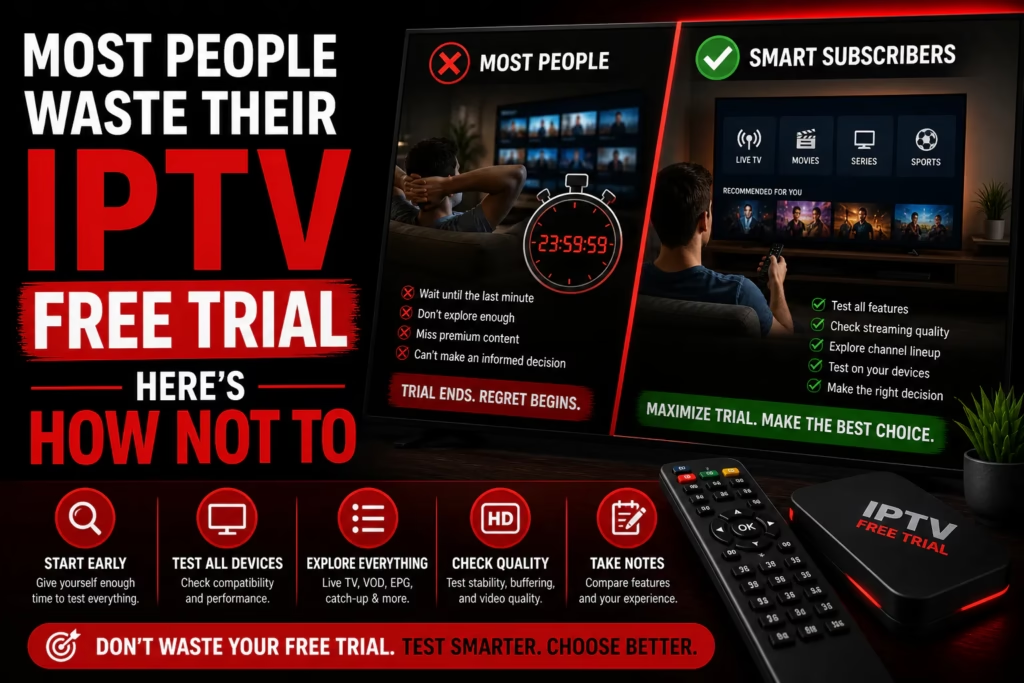
Most people start an IPTV free trial, watch a few channels, think “seems fine”, and subscribe. Then three weeks later they discover the channel they actually care about buffers every Saturday evening, or the VOD library does not have what they expected, or support takes 48 hours to respond. All of that is discoverable during the trial. None of it requires technical knowledge. It just requires knowing what to look for and when to look for it.
This guide covers exactly that. Whether you have 12 hours, 24 hours, or 36 hours, by the end of it you will know with confidence whether the service is worth paying for.
Looking for a free trial to start? See our full list of providers offering free trials with no card required. The 36-hour options give you the most time to run through this checklist properly.
Table of Contents
- 1. Start Your Trial at the Right Time
- 2. Test Your Specific Channels First
- 3. Test During Peak Hours
- 4. Test a Live Sport Stream
- 5. Test the VOD Library Properly
- 6. Check EPG Coverage
- 7. Test on Every Device You Plan to Use
- 8. Test Customer Support During the Trial
- 9. Test With and Without a VPN
- 10. What to Do If the Trial Disappoints
- The Complete Trial Checklist
1. Start Your Trial at the Right Time
This is the mistake most people make before they even open the app. Starting a 24-hour trial at 10pm on a Sunday when you plan to go to bed in an hour wastes the most valuable testing window you have. You want your trial to cover a full evening peak period – the hours between 7pm and 10pm when network load is at its highest and IPTV services are under the most strain.
The ideal trial start time is between 5pm and 7pm on a weekday or Saturday. This gives you a few hours of setup and off-peak testing followed by a full peak-hour window for the most demanding tests. If you have a 36-hour trial, even better – you can cover two separate evening windows which gives a much more reliable read on consistency.
If you are testing with a specific event in mind – a football match, a boxing card, a TV premiere – time your trial to include that event. That is the most relevant real-world test you can run.
2. Test Your Specific Channels First
Open the channel list and immediately search for the specific channels you actually watch. Not random channels. Not the most popular ones. The ones you personally care about.
For most people this is a short list: one or two sports channels, a news channel, maybe a regional or international channel. Write them down before you start the trial so you are not trying to remember them mid-session. For each channel you care about, confirm:
- It is in the library at all
- It loads within a few seconds
- The picture quality matches what you expect (HD or better)
- The audio is in sync with the video
- It plays for at least 5 minutes without buffering
A service with 40,000 channels that does not carry your specific regional sports channel is useless to you. Find out during the trial, not after subscribing.
3. Test During Peak Hours
Off-peak performance tells you almost nothing useful. A stream that plays perfectly at 2pm on a Tuesday may buffer consistently at 8pm on a Saturday. The only test that matters is peak hour performance – 7pm to 10pm, ideally on a Friday or Saturday evening when demand is at its highest.
During your peak hour test, watch a live channel you care about for at least 30 consecutive minutes without touching anything. Note whether it buffers, whether the picture degrades to a lower quality, and whether it recovers quickly if it does. A single brief pause is acceptable. Repeated buffering every few minutes is a sign the service will frustrate you consistently.
If you notice buffering only during peak hours and your speed test shows full broadband speed, your ISP may be throttling streaming traffic. A VPN can often fix this – see our VPN guide for IPTV and the testing section below.
4. Test a Live Sport Stream
Live sport is the most demanding test for any IPTV service. It requires consistent, uninterrupted streaming with no tolerance for buffering at critical moments. If you watch sport, this test is non-negotiable.
Find a live match or event during your trial window – it does not have to be a major event, any live sport will do. Watch for at least 20 minutes and check:
- The stream loads within a few seconds of selecting the channel
- No buffering or freezing during the 20-minute window
- Picture quality is stable – no sudden drops to low resolution
- Audio commentary is in sync with the picture
- The channel is listed correctly in the EPG with the right programme information
If no live sport is available during your trial window, check whether the provider has a catch-up or replay option for recent matches. If they do, test that instead – it will give you a reasonable indication of stream quality even if not a perfect live test.
5. Test the VOD Library Properly
Most people open the VOD section, see a large number, and assume it is good. The number means very little without checking what is actually in there. A library of 150,000 titles that is 80% obscure foreign language content from the 1970s is less useful than a smaller, well-curated library.
To test the VOD library properly:
- Search for three or four specific films you know and would want to watch
- Search for a recently released film from the last 3-6 months
- Search for a current TV series you follow – check whether recent episodes are available
- Play one title for at least 15 minutes to check stream quality and stability
- Check whether subtitles or multiple audio tracks are available if that matters to you
The recency of VOD content is often a better indicator of library quality than the total number. A service that has films from this year available is more actively maintained than one with a large number that has not been updated in months.
6. Check EPG Coverage
The EPG (Electronic Programme Guide) is the on-screen TV listings that shows what is currently airing and what is coming up. Without EPG coverage on your channels, you are watching TV blind – no way to see what is on next, no way to plan viewing, no channel information.
Open the EPG view and check:
- Your key channels have EPG data showing current and upcoming programmes
- The information is accurate – it matches what is actually airing
- EPG data shows at least 24-48 hours ahead
- Sport events are listed with correct team names and kick-off times
Not every channel in a 40,000+ library will have EPG data – that is normal and acceptable. What matters is whether your specific channels have it. Missing EPG on mainstream channels is a red flag.
7. Test on Every Device You Plan to Use
A service that works perfectly on your Firestick may have issues on your Smart TV or phone. If you intend to use IPTV on multiple devices, test on each one during the trial – do not assume performance will be consistent across platforms.
For each device, confirm:
- The app or player installs without issues
- Your credentials load correctly
- Channels load at acceptable quality for that screen size
- The interface is usable – not all apps work equally well on all devices
If you are subscribing to a multi-device plan, test simultaneous streaming specifically. Start a stream on two devices at the same time and confirm both play without degrading. Some providers claim multi-device support but throttle performance when multiple connections are active.
8. Test Customer Support During the Trial
This is the test almost nobody runs during a free trial – and it is one of the most revealing. Send a support message during your trial asking a genuine question about the service. It does not need to be a complex technical issue – something simple like confirming which player app they recommend, or asking about a specific channel.
What you are testing is response time and quality. A service with WhatsApp live chat that responds in minutes is fundamentally different from one with a ticketing system that takes 24 hours. If something goes wrong mid-match after you have subscribed, the support you experienced during the trial is what you will get.
Things to note:
- How long does it take to get a first response?
- Is the response helpful and specific, or generic copy-paste?
- Is there a live chat option or only email/ticket?
- Is support available on a weekend evening (when you are most likely to need it)?
9. Test With and Without a VPN
If you already use a VPN, test the service with it active to confirm there are no compatibility issues. Some IPTV services block VPN IP ranges – better to find out during the trial than after subscribing.
If you do not use a VPN but experience buffering during peak hours despite a fast broadband connection, try enabling a VPN during the trial and testing the same stream. If performance improves noticeably with the VPN on, your ISP is likely throttling streaming traffic. This is a fixable problem but worth knowing about before you subscribe – you will need to factor in the cost of a VPN alongside the IPTV subscription. See our VPN guide for IPTV for the best options.
10. What to Do If the Trial Disappoints
A disappointing trial is useful information. Before writing off the service entirely, work through the following:
Buffering during peak hours with full broadband speed – try a VPN before concluding the service is bad. ISP throttling is a common cause that can be fixed independently of the provider.
Missing channels – contact support during the trial and ask specifically whether those channels are available. Channel libraries change and some channels require a specific stream URL that is not immediately obvious in the app.
Poor VOD library – if the VOD is thin, check whether the service has a separate VOD section from the main live TV list. Some providers separate them.
App or device issues – try a different IPTV player app with the same credentials. A problem with the app is not the same as a problem with the service.
If after working through these the service still does not meet your needs, the trial has done its job. Do not subscribe. Start a trial with an alternative provider instead. Our free trials page lists every provider offering a no-card trial – there is no cost to trying a second service.
The Complete Trial Checklist
Print this or bookmark it before starting your trial
Before you start
- Write down your 3-5 must-have channels before opening the app
- Note the trial expiry time so you do not run out of time mid-test
- Plan to do the main test between 7pm and 10pm on a weekday or Saturday
Channel and stream quality
- All my specific channels are in the library
- Each loads within a few seconds
- Picture is HD or better with no audio sync issues
- 30 minutes of continuous viewing during peak hours without buffering
- Live sport stream tested for at least 20 minutes
VOD
- Searched for 3 specific films – all found
- A recent release from the last 6 months is available
- Current TV series with recent episodes available
- Played one title for 15+ minutes without issues
EPG and guide
- My key channels have EPG data
- EPG is accurate and shows 24+ hours ahead
- Sport events listed with correct information
Devices
- Tested on every device I plan to use
- Simultaneous streams tested if subscribing to multi-device plan
Support
- Sent a support message and noted response time
- Response was helpful and specific
VPN (if applicable)
- Tested with VPN active if I use one – no compatibility issues
- If buffering occurred, tested with VPN to check for ISP throttling
Which Providers Offer the Longest Free Trials?
More trial time means more opportunity to run through this checklist properly. The providers with the most generous no-card trials from our reviewed set:
| Provider | Trial Length | Card Required | Refund After Trial |
|---|---|---|---|
| StreamHD IPTV | 36 hours | No | 3 days |
| Flash 4K IPTV | 36 hours | No | 7 days |
| Honey Bee IPTV | 36 hours | No | 7 days |
| Necro IPTV | 36 hours | No | Confirm on site |
| Sora IPTV | 36 hours | No | Confirm on site |
| RealmIPTV | 24 hours | No | Confirm on site |
| Tivi-Live | 24 hours | No | 7 days |
| Krooz TV | Free trial | No | 7 days |
Flash 4K IPTV and Honey Bee IPTV offer the best combination – 36 hours to test followed by a 7-day refund window if you subscribe and change your mind. That gives you effectively 7 days and 36 hours of risk-free evaluation time.
See All Free Trials Not sure which to try? Take the quiz
Last updated May 2026.