
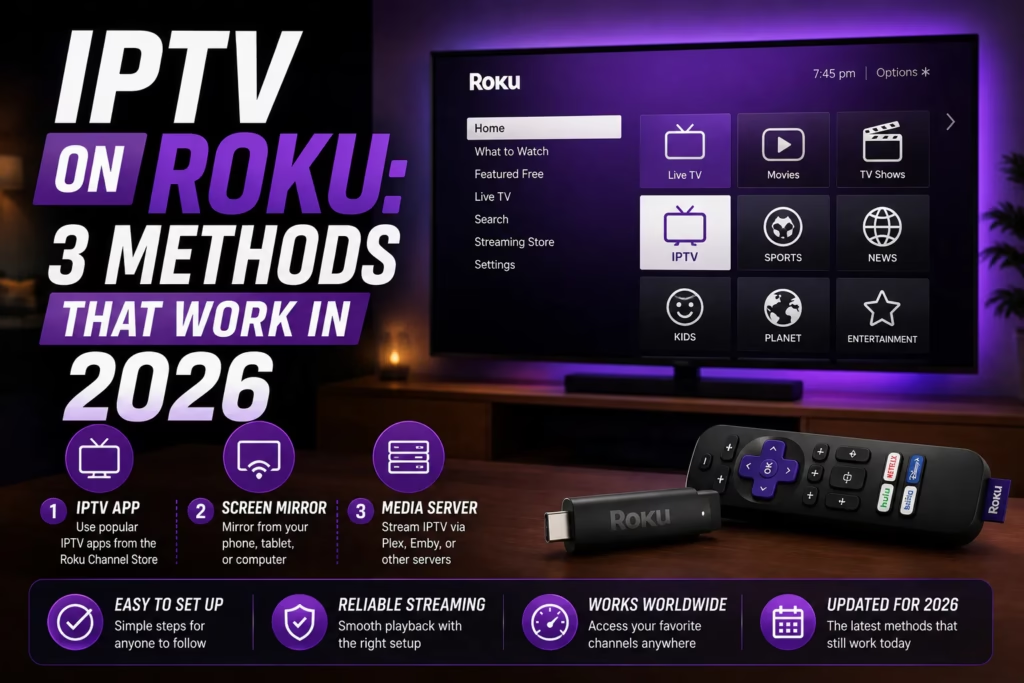
Roku is one of the most popular streaming devices in the United States but it is also one of the most restrictive when it comes to IPTV. Unlike Firestick or Android TV boxes, Roku runs a tightly controlled ecosystem that blocks most IPTV apps from being installed. TiviMate, IPTV Smarters Pro, and XCIPTV are not available in the Roku Channel Store and cannot be sideloaded the way they can on Firestick.
That said, IPTV on Roku is possible using three methods. This guide covers all three honestly — including which works best, which is most complex, and when adding a Firestick to your setup is the more practical solution.
Important: Roku is significantly more limited for IPTV than Firestick or Android TV. If you are buying a streaming device specifically for IPTV, a Firestick 4K or Android TV box is a more capable choice. If you already own a Roku and want to add IPTV, the methods below are your options.
Table of Contents
- Method 1: M3U Player from the Roku Channel Store
- Method 2: Screen Mirroring from Android or Windows
- Method 3: Developer Mode Sideloading
- Which Method Is Best?
- When a Firestick Makes More Sense
- Getting an IPTV Subscription
- FAQ
Method 1: M3U Player from the Roku Channel Store
The simplest method and the one most users should try first. A small number of M3U-based IPTV player apps are available directly in the Roku Channel Store. These apps accept an M3U playlist URL from your provider and load your channels without any sideloading or developer mode required.
Apps to search for in the Roku Channel Store:
- IPTV Smarters – available in the Roku Channel Store as an official channel on some Roku models
- M3U Playlist Player – a basic M3U player available in the Channel Store
- IBO Player – available in the Roku Channel Store. Free with a one-time activation fee
- OTTplayer – M3U-based player available in the Channel Store on some regions
How to set up:
- On your Roku go to Streaming Channels and search for the player app by name
- Add the channel and open it
- Navigate to playlist or M3U settings
- Enter your M3U URL from your provider welcome email
- Wait for the channel list to load — large playlists may take 60-90 seconds
M3U URL required: This method requires an M3U URL from your provider. Xtream Codes credentials (username, password, server URL) do not work directly — ask your provider for the M3U URL equivalent of your subscription. Most providers supply this on request.
Limitations: Channel Store IPTV apps on Roku are more basic than TiviMate or IPTV Smarters Pro on Firestick. EPG programme guide data may be limited, channel switching is slower, and the interface is less polished. For casual viewing this is acceptable. For daily IPTV use it is noticeably inferior to the Firestick experience.
Method 2: Screen Mirroring from Android or Windows
The fastest method with zero configuration required on the Roku itself. Open your IPTV player app on an Android phone or Windows PC, enable screen mirroring on the Roku, and the stream appears on your TV.
How to enable screen mirroring on Roku:
- On your Roku go to Settings > System > Screen mirroring
- Set Screen mirroring mode to Always allow or Prompt
- On your Android phone swipe down from the top of the screen and tap Cast or Screen Mirror
- Select your Roku device from the list
- Open your IPTV player app on the phone — the stream will appear on your TV
For Windows: Press Windows key + K to open the Connect panel, select your Roku device, then open your IPTV player on the PC. The screen will mirror to the TV.
Limitations: Screen mirroring drains your phone battery quickly during extended viewing. The phone screen stays on and active while mirroring. Audio plays through both the phone and the TV which can cause slight echo if the phone is nearby. iOS devices cannot screen mirror to Roku — AirPlay is not compatible with Roku. This method is better for occasional use than daily viewing.
Method 3: Developer Mode Sideloading
The most capable method but also the most complex. Roku has a developer mode that allows installing unofficial channel packages via a web interface. This is how IPTV Smarters Pro can be installed on Roku despite not being in the Channel Store.
Important caveats before starting:
- Roku only allows one sideloaded channel at a time — installing a second removes the first
- Enabling developer mode may affect your Roku warranty
- The process requires a computer with a browser on the same network as the Roku
- Sideloaded apps may stop working after Roku firmware updates
How to enable developer mode:
- On your Roku remote press: Home x3, Up x2, Right, Left, Right, Left, Right
- The Developer Options screen appears — note the IP address shown
- Select Enable Installer and restart and agree to the terms
- Create a password and select Set password and reboot
- On your computer open a browser and go to http://[Roku-IP-address]
- Sign in with username rokudev and the password you just created
- Download the IPTV Smarters Roku package file (.zip) from the official IPTV Smarters website
- In the Roku developer dashboard click Upload and select the downloaded file
- Click Install and wait for confirmation
- Return to your Roku home screen — IPTV Smarters will appear in your channel list
Once installed, open IPTV Smarters and enter your provider credentials as you would on any other platform.
Which Method Is Best?
| M3U Channel Store | Screen Mirroring | Developer Sideload | |
|---|---|---|---|
| Setup difficulty | Easy | Very easy | Complex |
| Requires phone or PC | No | Yes — always | PC for setup only |
| App quality | Basic | Depends on phone app | Full IPTV Smarters Pro |
| EPG guide | Limited | Depends on phone app | Full |
| iOS compatible | Yes | No — Android only | Yes |
| Stays working after updates | Yes | Yes | May break after firmware update |
| Best for | Most users — simple daily use | Occasional viewing, testing | Technical users wanting best app quality |
For most Roku users the Channel Store M3U player method is the right starting point. It is simple, stable, and does not require any technical steps. If the app quality is not sufficient for daily use, the developer sideload method gives the best result but requires more effort and may need repeating after firmware updates.
When a Firestick Makes More Sense
If you find Roku’s IPTV limitations frustrating, the most practical solution is adding a Firestick to your setup. A Firestick 4K plugs into any HDMI port on your TV and sits alongside your Roku — you switch between them using your TV remote’s input button. On the Firestick you get TiviMate, IPTV Smarters Pro, XCIPTV, and full sideloading capability without any workarounds.
A Firestick 4K costs around $30-50 and delivers a significantly better IPTV experience than any Roku workaround. If IPTV is a priority for your viewing, this is the more practical long-term solution than fighting Roku’s limitations.
See our complete Firestick IPTV setup guide for full instructions.
Getting an IPTV Subscription
If you do not yet have an IPTV subscription, several reviewed providers offer free trials with no card required. Make sure to request the M3U URL from your provider when signing up — this is required for Roku’s Channel Store method and Jellyfin integration.
See the full free trials list for every provider offering a no-card trial, or use our comparison tool to compare providers side by side.
FAQ
Can I install TiviMate on Roku?
No. TiviMate is not available on Roku and cannot be sideloaded in the same way as on Firestick. TiviMate is only available on Android TV, Firestick, and Apple TV. For the best IPTV experience on a TV screen, a Firestick alongside your Roku is the practical solution. See our TiviMate review for full details.
Does Roku support Xtream Codes?
Not directly through most Channel Store apps. The developer sideload method installs IPTV Smarters Pro which does support Xtream Codes. Channel Store M3U players require an M3U URL — ask your provider for this if you only have Xtream Codes credentials.
Can I use IPTV on a Roku TV?
Yes — Roku TVs run the same Roku OS as Roku streaming sticks and boxes. All three methods above apply equally to Roku TVs. The practical advantage of a Roku TV is that you can add a Firestick to the HDMI input without needing a separate TV.
Why is IPTV on Roku so limited?
Roku enforces strict content policies on its Channel Store and has closed the private channel loophole that previously allowed easier sideloading. This is a commercial and legal decision rather than a technical limitation — Roku’s hardware is capable of running IPTV apps but the platform restricts what can be installed.
Is screen mirroring good enough for daily IPTV viewing on Roku?
For occasional viewing yes, but for daily use it has practical limitations — your phone battery drains quickly, the phone screen must stay on and active, and iOS users cannot mirror to Roku at all. The Channel Store M3U player or developer sideload method is more practical for regular viewing.
Firestick Setup Guide Find a Provider
Last updated May 2026. Roku firmware updates may affect sideloaded apps.