
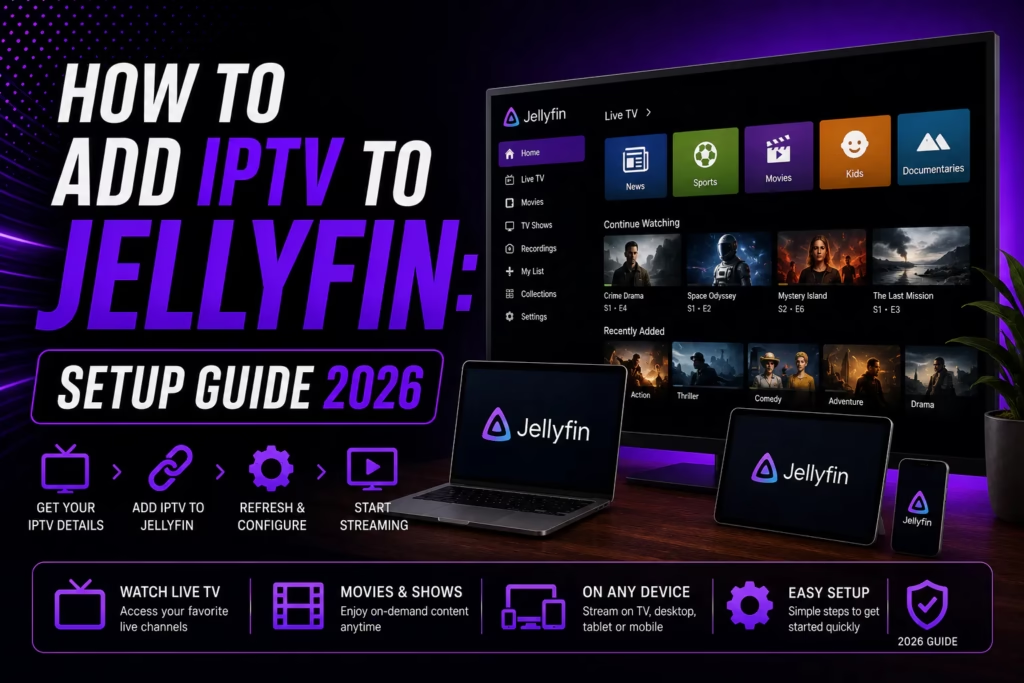
Jellyfin is a free open-source media server that most people use to organise and stream their personal film and TV library. What is less widely known is that Jellyfin also supports live TV streaming through IPTV – meaning you can add your IPTV subscription directly to Jellyfin and watch live channels alongside your personal media collection in the same interface. This guide covers how to set it up, what your provider needs to support, and the honest limitations to know before you start.
Before you start: Jellyfin IPTV requires a self-hosted Jellyfin server running on a PC, NAS, or server on your home network. If you do not already have Jellyfin set up, install it from jellyfin.org before following this guide. Jellyfin is free and open source.
Table of Contents
- How Jellyfin IPTV Works
- What You Need
- The Important Limitation to Know First
- Step-by-Step Setup
- Adding EPG Guide Data
- Using Jellyfin’s DVR for Live TV Recording
- Jellyfin vs Dedicated IPTV Players
- FAQ
How Jellyfin IPTV Works
Jellyfin handles live TV by treating your IPTV subscription as a tuner device – the same way it handles a physical TV tuner card or an HDHomeRun network tuner. You add your IPTV provider’s M3U playlist URL as a tuner source, optionally add an XMLTV EPG URL for programme guide data, and Jellyfin loads your channels into its Live TV section.
Once set up, your IPTV channels appear in the Jellyfin interface alongside your films and TV series. You can browse channels, view the programme guide, watch live streams, and record live TV using Jellyfin’s built-in DVR – all within the same interface you use for your personal media library.
Jellyfin clients on Firestick, Android TV, iOS, Android, Apple TV, and browser all support Live TV, meaning you can watch your IPTV channels on any device running the Jellyfin app connected to your home server.
What You Need
- A running Jellyfin server – PC, NAS, Raspberry Pi, or any device that can run Jellyfin continuously on your home network
- An active IPTV subscription – with an M3U URL available. See the limitation section below regarding Xtream Codes
- An XMLTV EPG URL – optional but strongly recommended for programme guide data. Your provider may supply this
- Sufficient storage – only needed if you plan to use the DVR recording feature
- A stable internet connection – on the server device, ideally wired ethernet
If you do not yet have an IPTV subscription, see our free trials page for providers offering a no-card trial. Make sure to request the M3U URL from your provider when you sign up – see the limitation section below for why this matters.
The Important Limitation to Know First
This is the most important thing to understand before starting: Jellyfin only supports M3U playlists and XMLTV EPG data. It does not support Xtream Codes API login.
Most IPTV providers issue credentials in Xtream Codes format – a username, password, and server URL. Jellyfin cannot use these directly. To add an Xtream Codes subscription to Jellyfin you need to convert your Xtream Codes credentials to an M3U URL first. Most providers that use Xtream Codes also supply an M3U URL on request or automatically – the format is typically:
http://[server-url]/get.php?username=[username]&password=[password]&type=m3u_plus
Ask your provider for the M3U URL directly if it is not included in your welcome email. If your provider only issues Xtream Codes credentials and does not supply an M3U URL, Jellyfin will not work with that subscription without a middleware tool like Dispatcharr.
Step-by-Step Setup
- Open the Jellyfin web interface in your browser – typically at http://[your-server-ip]:8096
- Click the Admin Panel icon (the settings cog at the top right)
- Select Live TV from the left-hand menu
- Click the + icon next to Tuner Devices
- Select M3U Tuner from the tuner type dropdown
- In the File or URL field paste your M3U playlist URL from your provider
- Set Simultaneous stream limit to match your subscription – if you have a 3-connection plan set it to 3 to avoid exceeding your limit
- Click Save – Jellyfin will load your channel list. This may take a minute for large playlists
- Return to the main dashboard and navigate to Live TV to confirm your channels are loading
Set the stream limit correctly. If you set the stream limit higher than your subscription allows, streams will fail when the limit is exceeded. Setting it to 0 allows unlimited streams which will cause issues on plans with connection limits. Match the number to your plan’s connection count.
Adding EPG Guide Data
Without EPG data Jellyfin shows your channels but with no programme information – no guide, no show names, no scheduling. Adding an XMLTV EPG source populates the programme guide.
- In the Jellyfin Admin Panel go to Live TV
- Click the + icon next to TV Guide Data Providers
- Select XMLTV
- Paste your XMLTV EPG URL – your provider may supply this in the same email as your M3U URL. A common format is: http://[server-url]/xmltv.php?username=[username]&password=[password]
- Click Save and then trigger a guide refresh from the Scheduled Tasks menu
If your provider does not supply an XMLTV EPG URL, third-party EPG sources like EPG.best or WebGrab+Plus can be configured as alternatives but require additional setup beyond this guide.
Using Jellyfin’s DVR for Live TV Recording
Jellyfin includes a DVR feature that records live TV directly to storage on your server – completely free with no additional software needed. Once Live TV is set up, recording is available from the programme guide by clicking any show and selecting Record.
Recordings appear automatically in your Jellyfin library under Recordings. You can set up series recordings, automatic cleanup rules for old recordings, and separate storage paths for movies versus TV recordings in the Live TV settings.
This is one of Jellyfin’s genuine advantages over dedicated IPTV players – TiviMate records to local device storage which is limited on a Firestick, while Jellyfin records to your server’s storage which can be significantly larger.
Jellyfin vs Dedicated IPTV Players
| Jellyfin | TiviMate | IPTV Smarters Pro | |
|---|---|---|---|
| Setup complexity | High — requires home server | Low — install and enter credentials | Low — install and enter credentials |
| Xtream Codes support | No — M3U only | Yes | Yes |
| DVR recording | Yes — to server storage | Yes — premium only, local storage | No |
| Personal media library | Yes — core feature | No | No |
| EPG quality | Good — requires XMLTV source | Best in class | Basic |
| Firestick support | Yes — via Jellyfin app (server required) | Yes — native | Yes — App Store |
| Cost | Free — open source | Free / ~$5-12/yr premium | Free |
| Best for | Home server users combining IPTV with personal media library | Firestick and Android TV daily IPTV viewing | Multi-platform including iOS and Smart TVs |
Jellyfin is the right choice if you already run a home server and want to combine your IPTV subscription with your personal media library in one place. For subscribers who just want a reliable IPTV player on Firestick or a Smart TV without the complexity of a home server, TiviMate or IPTV Smarters Pro are simpler and equally capable solutions. See our TiviMate review and IPTV Smarters Pro review for full details.
For advanced users wanting to go further with Jellyfin and IPTV – combining multiple providers, automatic failover between streams, and deeper integration – see our guide to Dispatcharr, which sits between your IPTV sources and Jellyfin as a management layer.
FAQ
Does Jellyfin support Xtream Codes IPTV?
Not directly. Jellyfin only supports M3U playlists and XMLTV EPG data. If your provider uses Xtream Codes, ask them for the M3U URL equivalent of your subscription. Most providers that issue Xtream Codes credentials also have an M3U URL available on request.
Is Jellyfin free?
Yes – Jellyfin is completely free and open source with no subscription, no premium tier, and no paid features. The DVR, Live TV, and media server features are all included at no cost.
Can I watch Jellyfin IPTV on a Firestick?
Yes – the Jellyfin app is available for Firestick and Fire TV. However it requires a Jellyfin server running on another device on your home network. The Firestick acts as a client that connects to your server rather than running the server itself.
Why are my Jellyfin IPTV channels not loading?
The most common causes are an incorrect or expired M3U URL, a stream limit set too high for your subscription, or a network issue between the Jellyfin server and the IPTV provider’s servers. Verify your M3U URL is working by pasting it into a browser first. Check the stream limit matches your subscription’s connection count.
Can Jellyfin record live TV from my IPTV subscription?
Yes – Jellyfin’s built-in DVR records live TV directly to storage on your server. Once Live TV is configured, recording is available from the programme guide. Storage space on your server is the only limiting factor.
What IPTV providers work with Jellyfin?
Any provider that supplies an M3U URL works with Jellyfin. Most reviewed providers on this site issue M3U URLs alongside or instead of Xtream Codes credentials. See our full provider list and ask your chosen provider for the M3U URL when you sign up. See our free trials page to test a provider before committing.
Find a Provider What Is Dispatcharr
Last updated May 2026. Jellyfin is open source and updated regularly — interface details may vary between versions. Check jellyfin.org for the latest documentation.