
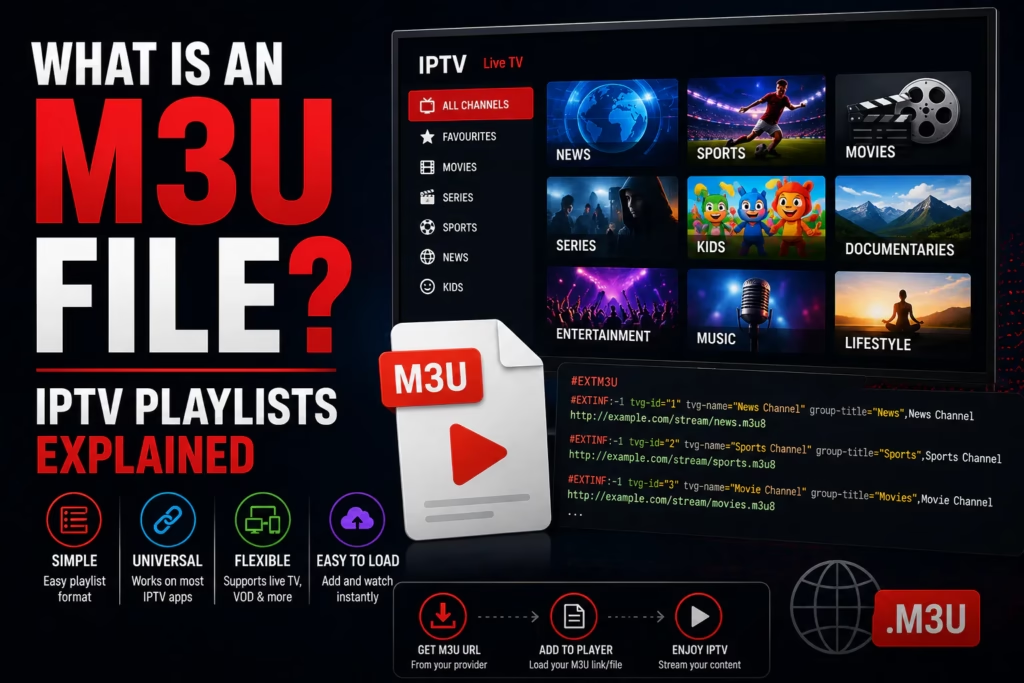
When you subscribe to an IPTV service your provider sends you credentials to access your channels. These credentials come in one of two formats — an M3U URL or Xtream Codes login details. If your provider gave you a link that ends in .m3u or .m3u8, or a URL containing words like “get.php” or “playlist”, that is your M3U URL. This post explains what it is, how to use it, and when you might prefer one format over the other.
What Is M3U?
M3U stands for MP3 URL — it was originally created as a format for music playlists in the 1990s. Over time it was adopted by IPTV services as a simple way to deliver a list of video streams. An M3U file is essentially a text file containing a list of stream addresses, one per channel, each with a label and sometimes additional metadata like a channel logo or EPG ID.
When you load an M3U URL into an IPTV player app the app reads that list and presents it as your channel guide. Every channel in your subscription appears because its stream address is included in the M3U file your provider hosts on their servers.
What Does an M3U URL Look Like?
Your provider’s M3U URL typically looks something like this:
http://provider-server.com/get.php?username=youruser&password=yourpass&type=m3u_plus&output=ts
It will contain your unique username and password embedded in the URL. This is different from Xtream Codes where you enter the server URL, username, and password separately. With M3U everything is combined into a single link.
Keep your M3U URL private. Anyone who has your M3U URL can access your IPTV subscription. Do not share it publicly or post it in forums. If you believe your URL has been compromised contact your provider to get a new one.
M3U vs M3U8 — What Is the Difference?
M3U8 is simply an M3U file encoded in UTF-8 — the standard character encoding used for most modern text. For IPTV purposes M3U and M3U8 are functionally identical and most player apps accept both. If your provider gives you an M3U8 URL it works exactly the same way as an M3U URL in any IPTV player.
How to Use an M3U URL in Your IPTV Player
Every major IPTV player supports M3U URLs. The process is similar across all of them:
- Open your IPTV player app — TiviMate, IPTV Smarters Pro, GSE Smart IPTV, or whichever you use
- Navigate to the playlist or add playlist section
- Select M3U URL or Remote Playlist as the input type
- Paste your full M3U URL from your provider welcome email
- Give the playlist a name and save
- Wait for the channel list to load — larger playlists with 20,000+ channels may take 60-90 seconds
For device-specific instructions see our Firestick setup guide or the setup wizard for other devices.
M3U vs Xtream Codes — Which Is Better?
| Feature | M3U URL | Xtream Codes |
|---|---|---|
| Format | Single URL containing username and password | Server URL + username + password entered separately |
| Security | Lower — credentials visible in URL | Higher — credentials not embedded in a shareable link |
| EPG support | Requires separate EPG URL | EPG data included automatically |
| Device compatibility | Universal — works on every player including Jellyfin | Most major players — not Jellyfin natively |
| VOD categories | Basic — all content in one list | Better — movies and series organised separately |
| Best for | Maximum compatibility across all devices and players | Daily use with TiviMate, IPTV Smarters, and most major players |
Most subscribers use Xtream Codes as their primary format because the EPG integration and VOD organisation are better. M3U is useful when a device or player does not support Xtream Codes — Roku Channel Store apps, Jellyfin, and some Smart TV apps require M3U. Most providers that issue Xtream Codes credentials also supply an M3U URL on request.
What Is an EPG URL and Do I Need It with M3U?
When using M3U your EPG programme guide data needs to be loaded separately from an XMLTV EPG URL. This is different from Xtream Codes where EPG is included automatically. Your provider may supply an EPG URL alongside your M3U URL — check your welcome email. If no EPG URL is provided ask your provider directly. Without EPG your channels will load but no programme guide information will display.
See our What Is EPG guide for more detail on how programme guides work in IPTV players.
Common M3U Problems and Fixes
Channels not loading after adding M3U URL — verify the URL is complete and correctly copied. A single missing character will break the link. Copy and paste directly from your provider email rather than typing manually.
M3U loads but no EPG data — you need a separate XMLTV EPG URL. Ask your provider for it or check your welcome email for a second URL.
M3U URL stopped working — your provider may have changed their server. Contact them for an updated URL. Some providers issue a new M3U URL when you renew or when they migrate servers.
M3U URL works on one device but not another — some providers limit the number of simultaneous connections. If your plan has a 3-connection limit and all three are in use, a fourth device will be refused. Check your connection count.
Do I Need a Subscription to Use M3U?
The M3U format itself is free and open — any player can read an M3U file. However the streams inside the M3U file require a valid active subscription to play. An M3U URL from an expired subscription will load the channel list but streams will refuse to play. You need an active paid subscription for the content to work.
If you do not yet have an IPTV subscription, several reviewed providers offer a free trial with no card required. See our free trials page to find a provider and get your M3U URL to test with.
Find a Provider What Is Xtream Codes
Last updated June 2026.