
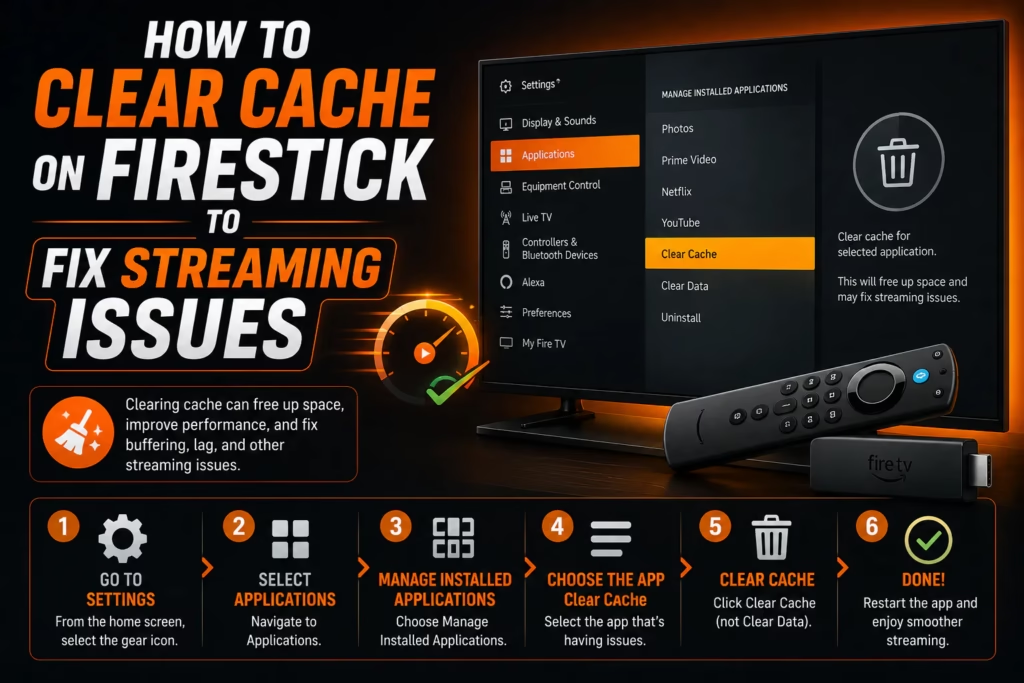
Clearing the cache on a Firestick is one of the most effective fixes for buffering, app crashes, slow channel loading, and general performance issues. It takes less than two minutes per app and costs nothing. This guide covers how to do it for IPTV apps, streaming apps, and the Firestick system as a whole.
Why Clearing Cache Helps
Every app on your Firestick stores temporary data – cached images, saved playlists, EPG data, temporary files – to speed up loading. Over time this cache grows and can become corrupted or outdated, causing the app to behave erratically. IPTV apps accumulate particularly large caches because they store channel lists, EPG data, and poster art for large libraries.
Clearing the cache removes this temporary data without deleting your login credentials, settings, or playlists. The app has to reload this data fresh on the next launch which takes slightly longer the first time but typically resolves performance issues caused by corrupted cache data.
How to Clear Cache for a Specific App
- From the Firestick home screen, go to Settings (gear icon)
- Select Applications
- Select Manage Installed Applications
- Find and select the app you want to clear cache for (e.g. TiviMate, IPTV Smarters Pro)
- Select Clear Cache
- Confirm if prompted
- Return to the home screen and reopen the app
Clear Cache vs Clear Data: Clear Cache removes temporary files and is safe to do anytime. Clear Data removes everything including your login credentials, settings, and playlists – only use this as a last resort if clearing the cache does not resolve the issue, as you will need to re-enter your IPTV credentials afterwards.
Apps Worth Clearing Regularly
These are the apps that accumulate the largest caches on a Firestick used for IPTV:
- TiviMate – EPG data and channel artwork accumulate quickly on large libraries
- IPTV Smarters Pro – channel list and VOD poster cache
- Stremio – metadata and stream cache
- Kodi – thumbnail cache, database files, and add-on data
- Amazon Video – often accumulates significant cache even if you do not use it regularly
- Downloader – APK files from previous installs remain in cache
How to Clear Cache for All Apps at Once
There is no single button to clear all app caches simultaneously on a Firestick. The options are either to go through each app individually as above, or to use a cache clearing app.
Using Downloader to install a cache cleaner: Several free cache cleaning APKs are available for Android TV. Search for “Cache Cleaner” in the Amazon App Store or use Downloader to install one. These apps scan all installed apps and clear caches in a single operation rather than one by one.
Restart the Firestick After Clearing Cache
After clearing cache on one or more apps, restart the Firestick to fully apply the changes. Go to Settings > My Fire TV > Restart. A full restart takes about 60 seconds and ensures the cleared cache is properly refreshed rather than partially reloaded from system memory.
When Clearing Cache Does Not Fix the Issue
If clearing the cache does not resolve buffering or performance problems, the issue is likely outside the app:
- Buffering during peak hours with full broadband speed – likely ISP throttling, see our buffering guide
- Slow performance on all apps – the Firestick itself may be underpowered or storage may be nearly full. Consider upgrading to a Firestick 4K Max.
- App crashes after cache clear – try Clear Data (note: this removes your settings) then reinstall if the crash persists
- Channels not loading after cache clear – your M3U URL or credentials may have changed. Check with your IPTV provider for updated credentials.
See our complete Firestick setup guide for full troubleshooting steps.
Last updated May 2026.