
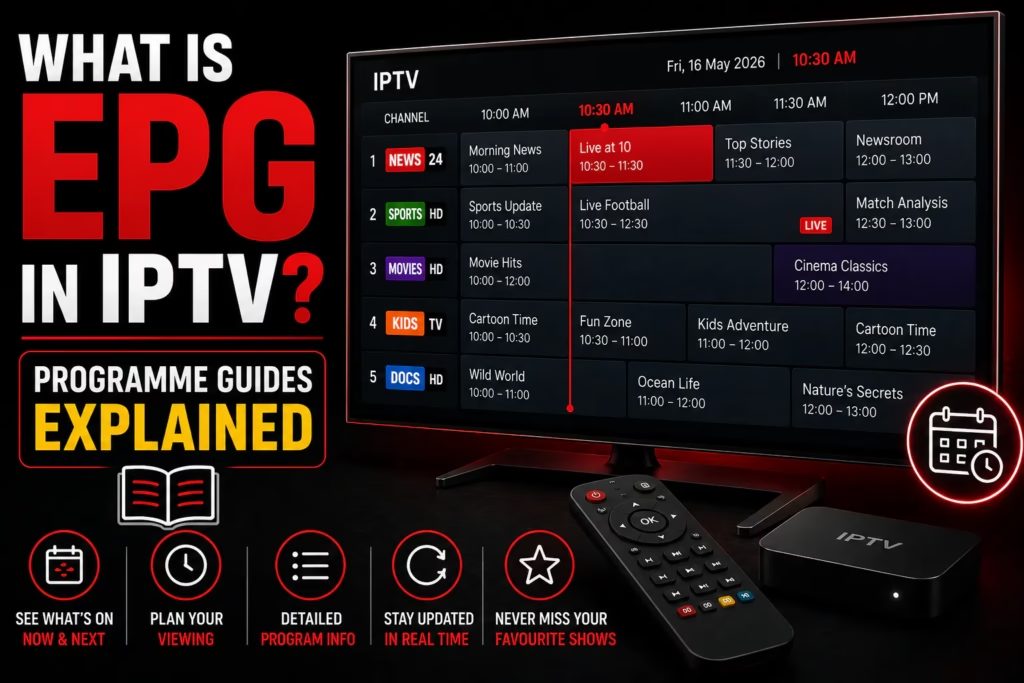
When you load your IPTV subscription into a player app you get a channel list — but without EPG data those channels have no programme information attached to them. No show names, no schedules, no descriptions. EPG is what transforms a raw channel list into a proper TV guide experience. This post explains what EPG is, how it works with your IPTV setup, and what to do when it is not loading correctly.
What Is EPG?
EPG stands for Electronic Programme Guide. It is the on-screen TV guide that shows what is currently airing on each channel and what is coming up next — the IPTV equivalent of a printed TV listings page or the guide button on a cable remote. In your IPTV player the EPG typically appears as a grid view showing channels down the left side and time slots across the top, with programme names and sometimes descriptions filling the grid.
EPG data is separate from your channel streams. Your IPTV subscription delivers the video streams — EPG data is a separate metadata feed that your player downloads and overlays onto those streams to tell you what is playing on each channel.
How EPG Works with IPTV
EPG data for IPTV comes in a standard format called XMLTV — an XML-based file format that contains channel names, programme titles, descriptions, start and end times, and sometimes additional metadata like genre, cast, and episode information.
Your IPTV provider hosts an XMLTV EPG file on their servers. Your player app downloads this file periodically — typically once per day — and uses it to populate the programme guide. The quality of your EPG depends entirely on how much data your provider includes in their XMLTV feed. Some providers supply rich EPG data with full descriptions and 7-day schedules. Others supply minimal data or no EPG at all.
EPG with Xtream Codes vs M3U
How EPG is delivered depends on which credential format your provider uses:
Xtream Codes: EPG data is included automatically when you log in. You do not need to find or enter a separate EPG URL — the player fetches it from the same server as your channel list. This is one of the main advantages of Xtream Codes over M3U for daily use.
M3U URL: EPG data is not included in the M3U playlist itself. You need a separate XMLTV EPG URL which your provider may supply alongside the M3U URL. If your provider has not given you an EPG URL ask them for it directly. Without it your channels will load but no programme information will display.
See our Xtream Codes guide and M3U guide for more detail on both formats.
How to Set Up EPG in Your IPTV Player
TiviMate
- Open TiviMate and go to Settings
- Select EPG
- If using Xtream Codes your EPG URL should already be populated automatically
- If using M3U paste your XMLTV EPG URL in the EPG source field
- Tap Update EPG to download the guide data
- Return to the channel list — programme information should now appear
IPTV Smarters Pro
- When adding your playlist select Xtream Codes for automatic EPG or M3U URL for manual
- For M3U enter your XMLTV EPG URL in the EPG URL field during playlist setup
- Save and reload — the EPG populates automatically
GSE Smart IPTV
- GSE automatically matches EPG data to channels where available via its auto-matching feature
- For manual EPG go to Remote Playlists and tap your playlist
- Select EPG Source and enter your XMLTV URL
- Pull down to refresh on the channel list to trigger an EPG update
What Does EPG Look Like in a Player?
Most IPTV players display EPG in one of two ways:
Grid view — the classic TV guide layout. Channels listed vertically on the left, time slots running horizontally across the top. Current programmes highlighted. TiviMate’s grid EPG is considered the best implementation of this format in any reviewed player.
Now and Next — a simpler view showing just the current programme and the next programme for each channel. Less information than grid view but faster to navigate. IPTV Smarters Pro uses this format primarily.
Common EPG Problems and Fixes
EPG shows no data at all
If using M3U check that you have entered an EPG URL — it does not come automatically with M3U. If using Xtream Codes trigger a manual EPG refresh in your player settings. If EPG was working previously and has stopped your provider may have changed their EPG server URL — contact them for the updated URL.
EPG loads but channels show wrong programme information
This is an EPG mapping issue — the channel in your playlist is not correctly matched to the corresponding EPG entry. In TiviMate you can manually assign EPG data to a channel by long-pressing it and selecting Edit Channel > EPG Source. In other players look for a channel editor or EPG assignment option in settings.
EPG only shows data for some channels
Your provider’s EPG feed may not include data for all channels. International and regional channels are frequently missing from EPG feeds. There is no fix for this on your end — the data simply is not in the feed your provider supplies.
EPG loads slowly or causes the app to freeze
Large EPG files — from providers with 20,000+ channels — can be slow to download and process. Schedule EPG updates for overnight in your player settings so they do not impact viewing. In TiviMate go to Settings > EPG > Auto Update and set a 3am update time.
EPG shows programmes but times are wrong
Check your device’s time zone setting. If the device clock is set to the wrong time zone EPG times will appear offset. Set your device to the correct local time zone and trigger a fresh EPG update.
What Is a Good EPG?
EPG quality varies significantly between IPTV providers. A good EPG includes:
- Coverage for the majority of channels in the subscription not just the most popular ones
- At least 7 days of upcoming programme data
- Programme descriptions not just titles
- Accurate start and end times
- Regular updates — typically every 24 hours
When testing a new provider on a free trial check the EPG quality specifically for the channels you watch most. A provider with 30,000 channels but poor EPG coverage on the channels you care about is less useful than one with fewer channels and comprehensive guide data.
Third-Party EPG Sources
If your provider’s EPG is poor or missing, third-party XMLTV EPG sources can sometimes fill the gap. EPG.best is one of the more commonly used free XMLTV sources covering a range of international channels. You add the third-party EPG URL in your player alongside or instead of your provider’s EPG URL.
The limitation is channel matching — third-party EPG data needs to be mapped to your specific provider’s channel IDs which can require manual configuration in the player. TiviMate handles this better than most players through its manual EPG assignment feature.
If you do not yet have an IPTV subscription and want to see what EPG looks like in practice, see our free trials page for providers offering a no-card trial — testing EPG quality during a trial is one of the key things to check before subscribing.
Find a Provider TiviMate Review
Last updated June 2026.